New service | Change log
You can use the Customer Service Center (CSC) within Business Manager to manage your orders.
Prerequisite
You must have provided permission to be able to manage your orders within the Customer Service Center module. For more details, visit our Optional configuration page.
- Log into Business Manager and go to Merchant Tools → Ordering → Customer Service Center to access the CSC interface.
- Click on "Find Order" and enter the order number.
- Click on "More" and the system will display the actions available for the order.
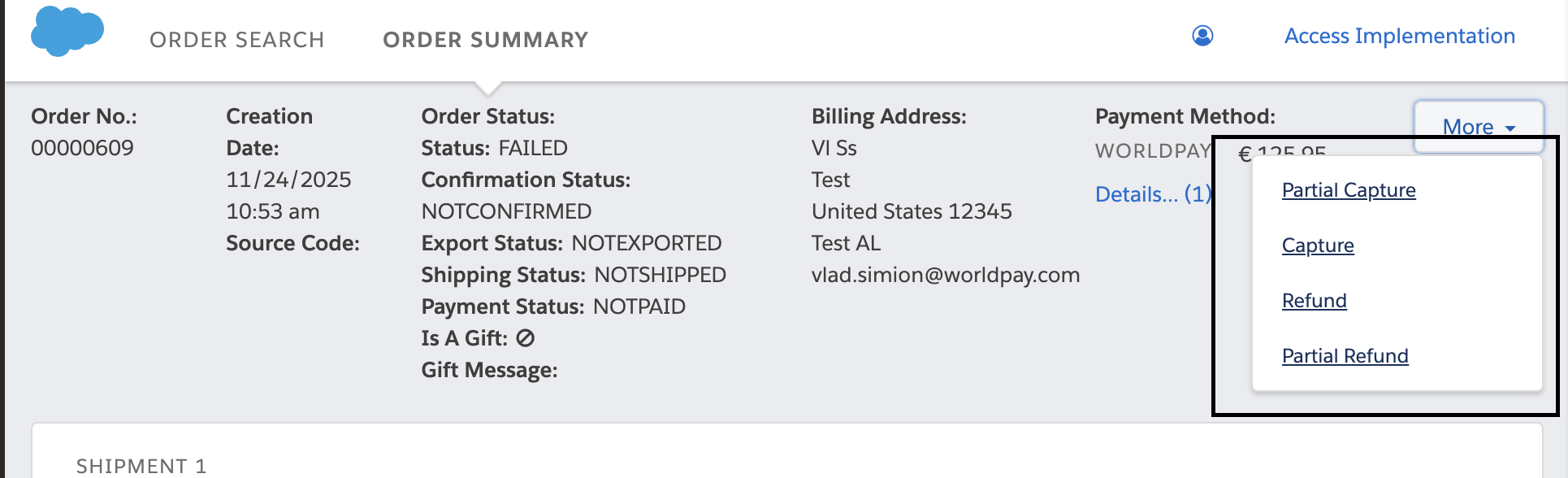
- Select "Capture".
- For a partial capture action, specify the amount.
- The system validates the request and processes the transaction.
- A success or error message is displayed to you.
- Select "Refund" or "Partial Refund".
- If partially refunding a product or multiple products, specify the amount.
- Confirm the action.
- The system validates the request and processes the transaction.
- A success or error message is displayed to you.
Note
The cancel action appears only when the payment is authorized but not captured.
- Select "Cancel".
- Confirm the action.
- The payment is voided and a success or error message is displayed.
- Unless you are using Salesforce's OMS service, the SFCC order status is updated so that:
- product quantities are reduced
- any items are returned to stock
- the order totals are recalculated
Note
For details on how to set your OMS preference within SFCC, visit Optional configuration.
If you are canceling or refunding an order through Salesforce's OMS service, the order status will not be automatically updated in SFCC.
Instead, you must update the order status and stock using the OMS.
Next steps